CopyCat
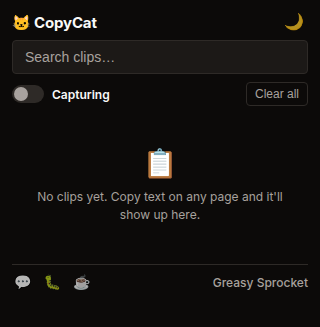
Clipboard history that lives in your browser. Everything you copy is searchable for 30 days. 100% local, no cloud.
How to install manually (2 minutes)
- Download the ZIP above and unzip it (right-click → Extract all).
- Open
chrome://extensionsin your browser. - Turn on Developer mode (top-right toggle).
- Click Load unpacked and select the unzipped folder.
The extension stays local — it never phones home and it never updates itself.
Features
Side panel with full-height clipboard history — click the toolbar icon
Context menu: right-click to save selections or paste from CopyCat
Auto-captures everything you copy (Ctrl+C) on any page
Searchable history — find any copied text by keyword
Last 100 items, auto-cleaned after 30 days
Click any item to copy it again instantly
Pin important clips so they don't expire
100% local — chrome.storage.local, no cloud, no sync
CopyCat keeps a searchable history of everything you copy. Ctrl+C on any page, and the text is saved. Search by keyword, click to copy again.
What’s new in v1.1.4
-
Chrome Web Store ready — cleaned manifest (no self-update fields), new icons, and a proper PRIVACY.md.
-
No auto-opened popups, ever (v1.1.3) — the coffee link stays passive in the popup footer. No nag screens.
-
Ghost empty-state fixed — no phantom empty message under the clip list.
-
Side panel, full context menu and pause/resume from v1.1.0 remain — see below.
-
Side panel — click the toolbar icon to open a full-height sidebar with your complete clipboard history. More space than the popup, stays open while you work.
-
Context menu — right-click on any page to:
- Save to CopyCat — on any selected text
- Paste from CopyCat — submenu with your 8 most recent clips, paste directly into any editable field
- Open CopyCat side panel — opens the sidebar
- Pause/Resume capturing — toggle capture on/off without opening the popup
How it works
- Copy anything — select text, Ctrl+C, on any website
- CopyCat captures it — stores the text in chrome.storage.local
- Open popup or side panel — search by keyword, browse recent clips
- Click any item — it’s copied to your clipboard again
- Pin important clips — they won’t expire
- Right-click — save selections or paste from history via context menu
Privacy
CopyCat doesn’t collect any data. No analytics, no tracking, no telemetry.
Your clipboard history is stored in chrome.storage.local and never leaves
your browser. No cloud, no sync, no accounts.
The extension skips password fields and clips shorter than 2 characters. You can toggle CopyCat off from the popup anytime.
Free forever
CopyCat is 100% free. All features are available to everyone. There are no premium tiers, no locked features, no usage limits. If you enjoy it, you can buy me a coffee — but there’s zero pressure.
How would you rate CopyCat?
Click a star to vote — no account needed.
Frequently asked questions
Is CopyCat really free?
Yes, 100% free. No premium tiers, no locked features. If you enjoy it, you can buy me a coffee — but there's zero pressure.
Does CopyCat send my clipboard to the cloud?
No. Everything stays in your browser via chrome.storage.local. No cloud, no sync, no accounts. Your clipboard history never leaves your device.
How much history does CopyCat keep?
The last 100 items you copied. Items auto-expire after 30 days unless you pin them. Pinned items stay forever.
Can CopyCat capture passwords?
CopyCat skips input fields with type=password. It also skips very short clips (under 2 characters). For sensitive content, you can toggle CopyCat off from the popup.
Does CopyCat work with images or files?
No. CopyCat only captures text copies. Image and file clipboard entries are ignored.