ColorPick
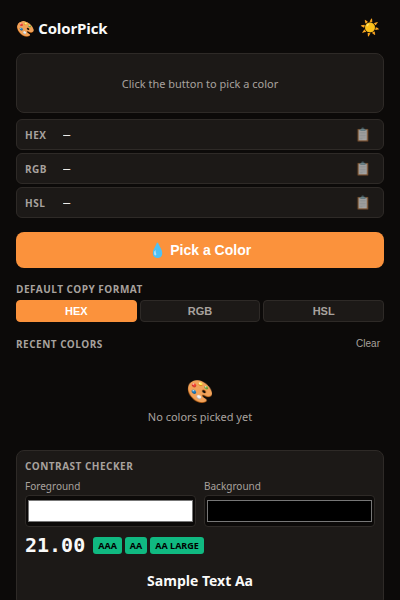
Universal eyedropper. Click any pixel, get HEX, RGB, HSL. History of last 10 colors. Zero config.
How to install manually (2 minutes)
- Download the ZIP above and unzip it (right-click → Extract all).
- Open
chrome://extensionsin your browser. - Turn on Developer mode (top-right toggle).
- Click Load unpacked and select the unzipped folder.
The extension stays local — it never phones home and it never updates itself.
Features
EyeDropper API — pick any color on any page
Copy as HEX, RGB, or HSL — your choice
History of last 10 picked colors
Click any color in history to copy again
Color contrast checker — WCAG AA/AAA compliance
100% local — no servers, no tracking
ColorPick adds a universal eyedropper to your browser. Click any pixel, get HEX, RGB, and HSL. Copy to clipboard with one click.
How it works
- Click the ColorPick icon — activates the eyedropper
- Move your cursor — live color preview follows your mouse
- Click any pixel — color is captured and copied to clipboard
- History — last 10 colors saved, click to copy again
Privacy
ColorPick doesn’t collect any data. No analytics, no tracking, no telemetry.
Picked colors are stored in chrome.storage.local and never leave your browser.
Free forever
ColorPick is 100% free. All features are available to everyone. There are no premium tiers, no locked features, no usage limits. If you enjoy it, you can buy me a coffee — but there’s zero pressure.
How would you rate ColorPick?
Click a star to vote — no account needed.
Frequently asked questions
Is ColorPick really free?
Yes, 100% free. No premium tiers, no locked features.
Does ColorPick work on any website?
Yes. ColorPick uses the native EyeDropper API (Chrome 95+). It works on any website without restrictions.
Does ColorPick store my picked colors?
Only locally. The last 10 picked colors are stored in chrome.storage.local. They never leave your browser.
Can I copy in different formats?
Yes. You can switch between HEX (#ff0000), RGB (rgb(255,0,0)), and HSL (hsl(0,100%,50%)) from the popup. The format you pick is used for all future copies.